
Installation & Setup
Table of Contents
This section covers installing the exo CLI, authenticating with your credentials, and optionally setting up contexts for different Git hosts.
Installing the CLI
Run the installer script (Linux):
curl -fsSL https://github.com/Genentech/exohub/releases/latest/download/install.sh | bash
Note: macOS support is experimental and still a work in progress. Some features may not work as expected.
This downloads and installs the exo CLI and all required components (git-annex, S3 transfer tools, credential helpers).
By default, binaries are installed to ~/.local/bin. Add this to your PATH if needed:
export PATH="$HOME/.local/bin:$PATH"
Add this line to your shell profile (~/.bashrc or ~/.zshrc) to make it permanent.
Verify Installation
Check that everything is working:
exo
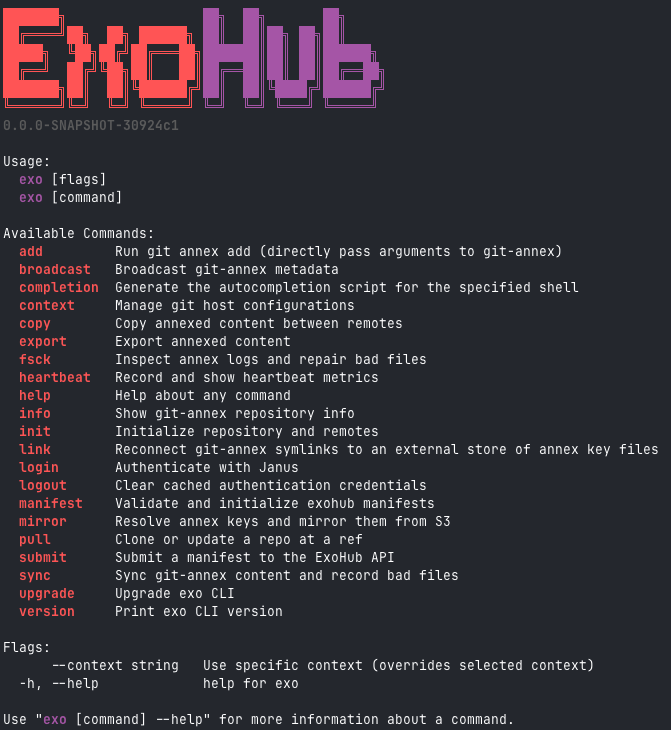
You should see the exo banner and a list of available commands:
To see the versions of all installed components:
exo version --all
This lists exo and all companion binaries (git-annex-remote-s5cmd, exo-credential-helper, git-annex-remote-artifactdb-export, s5cmd, git-annex). Add --full to include build metadata (commit, date, and compiled feature flags) for each component:
exo version --all --full
Upgrading
To upgrade to the latest version:
exo upgrade
This re-runs the installer and updates all components.
Note: Set the
EXO_UPGRADE_URLenvironment variable to the URL of the upgrade script (must usehttps://) if you are using a custom ExoHub deployment. The command exits with an error if the URL is neither built-in nor set.
Authentication
Before accessing datasets, authenticate with your credentials:
exo login
This starts a device authentication flow:
A URL and code are displayed in your terminal
Open the URL in a browser (or scan the QR code with
--qrcode)Enter the code and log in with your SSO credentials
Return to your terminal — authentication is complete
Your credentials are cached locally. Each time you run exo login, exo refreshes your token automatically. If a full device-flow login is performed, ExoSafe credentials (SSH keys and git tokens) are also provisioned locally.
Checking Authentication Status
Run exo login again — it will automatically refresh your credentials:
exo login
# If refresh token exists:
# 🔄 Refreshing credentials...
# ✅ Credentials refreshed for: username

# If no cached token or refresh fails, the device authentication flow starts.
Re-authenticating
If you need to refresh your credentials or switch accounts:
exo login --force
This forces a full device-flow login (bypassing any cached refresh token) and also purges the S3 credential helper cache so stale cached credentials are cleared.
Checking Your Identity
Use exo whoami to see who you’re logged in as, how long your session lasts, and which AWS credentials exo will use:
exo whoami            # human-readable summary
exo whoami --json     # stable JSON shape, for MCP/automation
exo whoami --aws      # also perform a live sts:GetCallerIdentity call
It reports your identity (username, name, email, provider, issuer), session info (expiry and whether a refresh token is stored), organisation claims when present (department, cost center, manager, groups), and the AWS profile and credentials file exo uses. If you’re not logged in, it prints a message and exits non-zero. Tokens, refresh tokens, and AWS secrets are never printed.
Logging Out
To clear cached credentials:
exo logout
This clears cached tokens, any ExoSafe-provisioned credentials (SSH keys and git credential helpers), and the S3 credential helper cache.
ExoSafe Credentials
ExoSafe is a cloud-based credential store that automatically provisions SSH keys and git tokens when you log in. If you have credentials stored in ExoSafe, they are retrieved and set up locally each time you perform a full device-flow login.
For full details on storing and managing credentials, see Managing Credentials .
Setting Up Contexts (Optional)
Contexts store connection settings for Git hosts. If you work with multiple hosts or organizations, contexts save you from typing URLs repeatedly.
Creating a Context
exo context create production \
    --host https://git.example.com \
    --org myorg/data-repositories \
    --description "Production data repositories"
This creates a context named production that points to the specified host and organization.
Listing Contexts
exo context list
Viewing a Context
exo context show production
Updating a Context
exo context update production --org different-org
Deleting a Context
exo context delete production
Default Context
A built-in default context is always available. Its host and organization are determined by the EXOHUB_GIT_HOST environment variable or the built-in default of your ExoHub binary. You don’t need to create this context — it’s available automatically.
Using Contexts
Contexts are used when initializing new repositories. Instead of specifying --host and --org each time, the CLI reads from your context configuration. Running exo context without a subcommand opens an interactive picker.
You can also set the context via the EXOHUB_CONTEXT environment variable instead of passing --context on every command:
export EXOHUB_CONTEXT=production
exo init  # uses the "production" context
The --context flag takes priority over the environment variable.
Environment Variables
See Environment Variables for the full list. The most commonly set variable is:
# Use 4 parallel jobs for faster syncing
export EXOHUB_JOBS=4
Next Steps
Now that you’re set up, let’s work with repositories .